Download the app & Login Descargar la aplicación e iniciar sesión
Download the CabView app from the App Store (iOS) or Play Store (Android), or scan the QR code below.
Descargue la aplicación CabView desde el App Store (iOS) o Play Store (Android), o escanee el código QR a continuación.
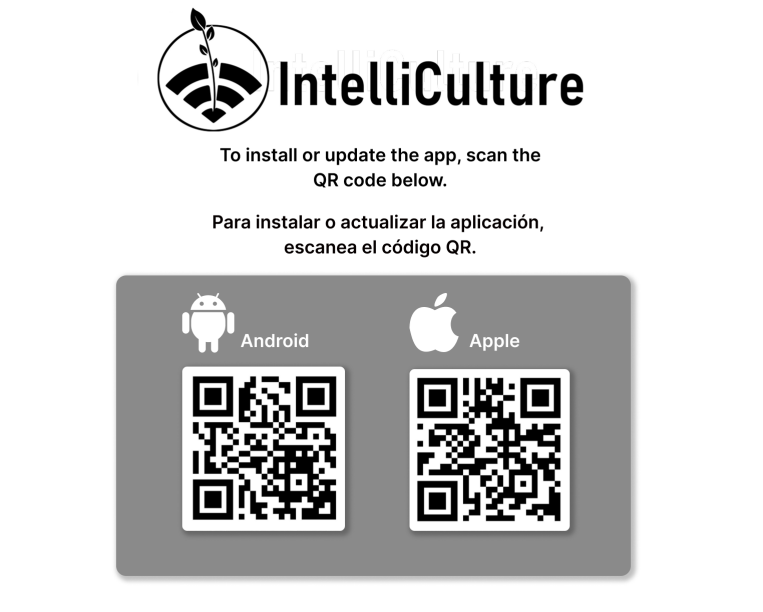
Make sure you have a username and password. If you don't have an account, reach out to support@intelliculture.com.
Asegúrese de tener un nombre de usuario y contraseña. Si no tiene cuenta, comuníquese con support@intelliculture.com.
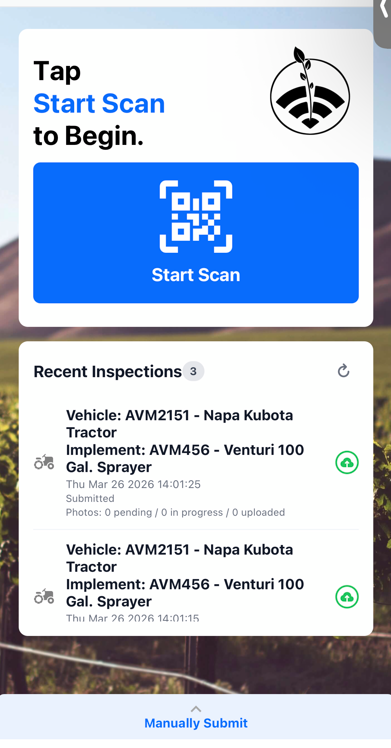
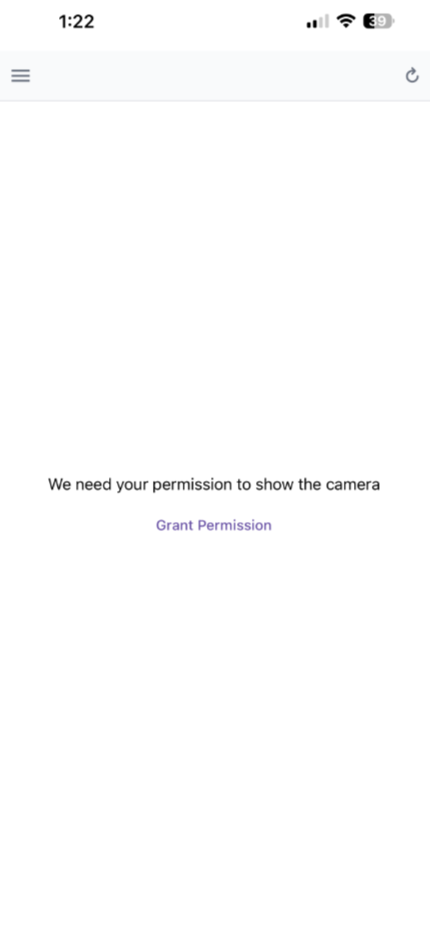
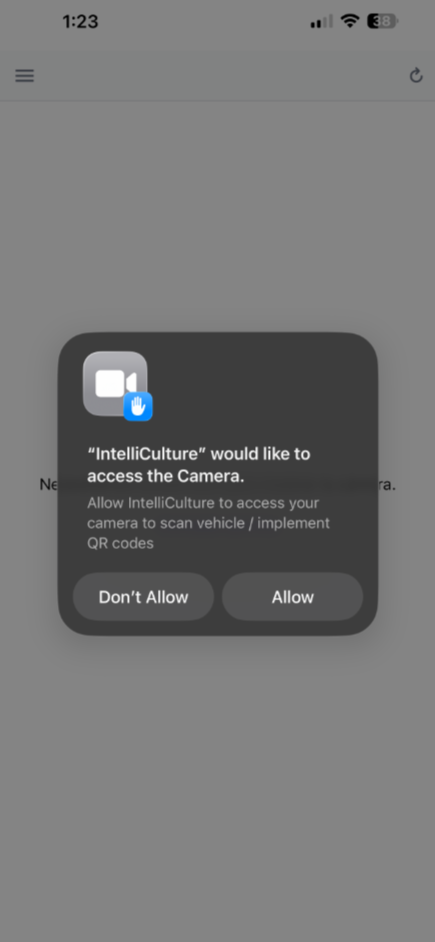
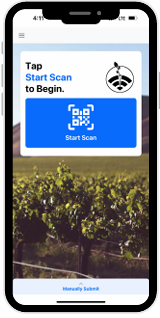
After logging in, tap Scan in the top-left corner, then tap Start Scan to Begin. Allow camera access when prompted.
Después de iniciar sesión, toque Escanear en la esquina superior izquierda, luego toque Iniciar Escaneo para Comenzar. Permita el acceso a la cámara cuando se le solicite.
⚠ If you accidentally deny camera access, you will need to delete and reinstall the app.
⚠ Si accidentalmente niega el acceso a la cámara, deberá eliminar y reinstalar la aplicación.
Inspections & QR scanning Inspecciones y escaneo QR
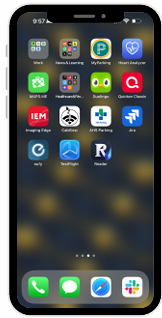
Open the IntelliCulture app on your mobile device.
Abra la aplicación IntelliCulture en su dispositivo móvil.
Tap Start Scan to begin.
Toque Iniciar Escaneo para comenzar.
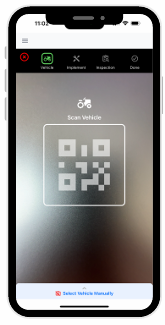
Point your camera at the QR code on the vehicle to scan it.
Apunte la cámara al código QR del vehículo para escanearlo.
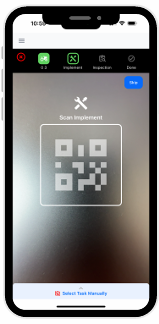
Scan the Implement QR code, or tap the bottom bar to select a task manually.
Escanee el código QR del implemento, o toque la barra inferior para seleccionar una tarea manualmente.
Complete the inspection form and tap Submit.
Complete el formulario de inspección y toque Enviar.
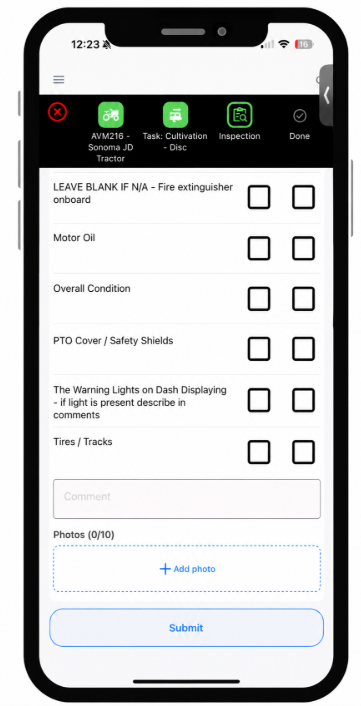
Tap Submit to confirm, or wait 3 seconds for the form to auto-submit.
Toque Enviar para confirmar, o espere 3 segundos para el envío automático.
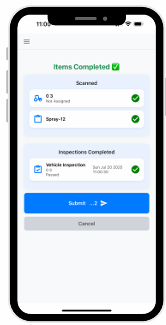
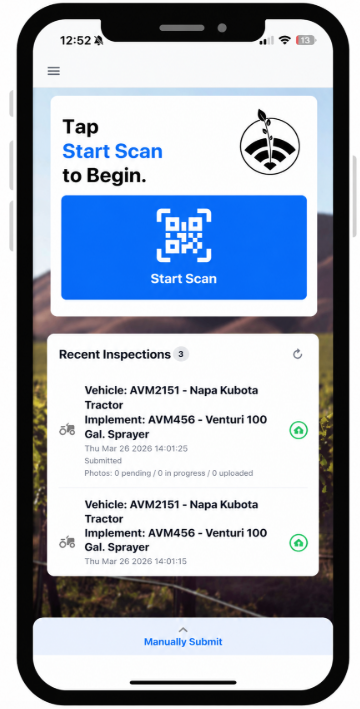
If you don't see a green icon, the scanning report did not send.
Si no ve un ícono verde, el reporte de escaneo no se envió.
⚠ Inspection has not sent ⚠ La inspección no se ha enviado
This is likely caused by a poor cell connection. Check your recent inspections — if the icon is red, the inspection has not sent. Tap the circular arrow icon in the corner to retry. If it still doesn't send, move to an area with a better cell signal and try again. Esto puede deberse a una conexión celular deficiente. Revise sus inspecciones recientes — si el ícono está en rojo, la inspección no se ha enviado. Toque el ícono de flecha circular en la esquina para reintentar. Si no se envía, muévase a un área con mejor señal celular e intente de nuevo.
⚠ QR code not set up ⚠ Código QR no configurado
The QR code has not been linked to equipment yet. Please reach out to your supervisor or manager to finish setting up the QR code. El código QR aún no ha sido vinculado al equipo. Por favor comuníquese con su supervisor o gerente para terminar de configurarlo.
⚠ QR code cannot be read — damaged ⚠ No se puede leer el código QR — dañado
If the QR code is damaged and cannot be scanned, contact your supervisor or manager to replace it. Si el código QR está dañado y no se puede escanear, comuníquese con su supervisor o gerente para reemplazarlo.